
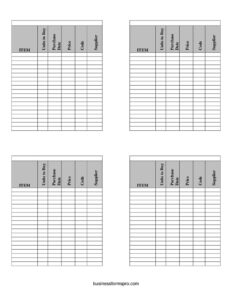
Inventory Cards Management System — BW
Track stock with a free Inventory Cards Management System template — log items, suppliers, prices and reorder dates. Free download in PDF and DOCX.
PDF
DOCX
1 downloads
0
likes
Download Files
- DOCX
An Inventory Cards Management System is a simple stock-tracking tool that records each item you hold, what it costs, where it comes from, and when it needs reordering. People most often use it to keep day-to-day control of supplies without expensive software, and you can download it free in both PDF and DOCX with no signup required.
What Is an Inventory Cards Management System?
An Inventory Cards Management System is a card-based or sheet-based record that assigns one tracking entry to each product or material in your stock. Each card captures the essentials — the item name, how many units to buy, the purchase date, the price paid, an internal code, and the supplier. Small business owners, warehouse staff, store clerks, office managers, and workshop operators all use it to know what they own, what it cost, and when to replenish. Rather than relying on memory or scattered receipts, the system creates a consistent, repeatable place to log every purchase and reorder decision so inventory stays accurate and orderly.
When Do You Need an Inventory Cards Management System?
This template fits any situation where you buy, store, and reorder physical goods. Common scenarios include:
- Running a retail shop where shelves must be restocked before items sell out and customers walk away.
- Managing office or facility supplies such as paper, toner, cleaning products, or pantry items that need regular replenishment.
- Operating a workshop or trade business that consumes parts, fasteners, and raw materials across jobs.
- Stocking a restaurant or café kitchen where ingredients, packaging, and disposables turn over quickly.
- Tracking warehouse goods by assigning a unique code to each product for fast lookup and counting.
- Comparing supplier prices over time so you can spot when costs rise and decide whether to switch vendors.
What an Inventory Cards Management System Should Have
A complete inventory card keeps every entry consistent so the records stay useful. At minimum it should capture a clear item name that staff recognize, a code that uniquely identifies the product, the quantity you intend to purchase or hold, the price tied to that purchase, the purchase date, and the supplier who provided it. Together these fields answer the four questions every inventory system must address: what it is, how much you have, what it cost, and where to get more. Keeping units consistent — always counting by box, case, or single unit — and using the same code format across all cards makes the whole system reliable and easy to total.
How to Fill Out an Inventory Cards Management System
- Item: Write the product name exactly as your team refers to it — for example, “Letter Paper 80gsm” or “M6 Hex Bolts.” Be specific enough to avoid confusion between similar products.
- Units to Buy: Enter the quantity for this purchase or reorder. State the unit clearly (each, box, case, pallet) and use the same unit every time you log the same item.
- Purchase Date: Record the date the order was placed or the goods were received. Use a consistent format such as YYYY-MM-DD so entries sort correctly.
- Price: Enter the cost for this purchase. Note whether it is the unit price or the total so future comparisons are accurate.
- Code: Assign or copy the internal SKU or part code. This is the field you’ll use to look up, count, and match items quickly.
- Supplier: Name the vendor that supplied the item, ideally with enough detail to reorder — a company name or account reference works well.
Tips for Getting the Most From Your Inventory Cards
Decide on a card layout before you start entering data, then never deviate from it. Use one card per distinct product rather than mixing variations, because lumping a 1L bottle and a 5L bottle under one card hides what you actually have. Set a sensible reorder point in your head — or note it beside the Units to Buy field — so you always know the threshold that triggers a new purchase. Review the cards on a fixed schedule, such as weekly or monthly, and reconcile them against a physical count to catch shrinkage, miscounts, or unrecorded usage. Over time the Purchase Date and Price columns build a small history that reveals seasonal demand and creeping supplier costs.
Paper Cards Versus a Digital Sheet
The DOCX version of this template works well as a printable card you can pin to a shelf, file in a box, or hand to staff doing manual counts. The same fields also translate cleanly into a spreadsheet, where you can sort by Code, filter by Supplier, and use formulas to total the Price column or flag items with low Units to Buy. Many small operations start with printed cards and graduate to a digital sheet as their catalog grows. Whichever format you choose, the discipline matters more than the medium: consistent codes, consistent units, and a regular review rhythm are what keep inventory trustworthy.
Common Mistakes to Avoid
- Inconsistent units — mixing “each” and “box” for the same item makes quantities meaningless and totals wrong.
- Duplicate or missing codes — two items sharing a code, or a blank code, breaks lookups and counts.
- Vague item names — generic labels like “paper” or “bolts” fail when you stock several variants.
- Forgetting to record the price at purchase, which erases your ability to track cost trends later.
- Never reconciling against a physical count, so errors and shrinkage accumulate unnoticed.
- Leaving the supplier blank, which slows reordering when you can’t remember where an item came from.
Frequently Asked Questions
What is an Inventory Cards Management System used for? It is used to track each item in your stock on its own card or row, recording the quantity to buy, the purchase date, the price, an internal code, and the supplier. The goal is to always know what you have, what it cost, and where to reorder it. It suits shops, offices, kitchens, workshops, and small warehouses.
How do I fill out the inventory card? Complete one card per product: enter the item name, the units to buy, the purchase date, the price, the code, and the supplier. Use consistent units and date formats across every card so totals and comparisons stay accurate. Update or create a new card each time you reorder.
Is this template free to download? Yes. The Inventory Cards Management System template is completely free to download in both PDF and DOCX formats, with no signup or payment required. You can print it as physical cards or edit the DOCX version on your computer.
Can I use it in a spreadsheet instead? Absolutely. The six fields — Item, Units to Buy, Purchase Date, Price, Code, and Supplier — map directly to spreadsheet columns, letting you sort, filter, and total your data. Many users start with printed cards and move to a digital sheet as their item list grows.
What should go in the Code field? Use a short, unique identifier such as a SKU, part number, or your own naming scheme. The key is that each item has exactly one code and that the format stays consistent across every card, since this is how you’ll look items up and reconcile counts.
How often should I update the cards? Update a card whenever you place an order or receive stock, and review the whole set on a regular schedule — weekly or monthly works for most small operations. Pair each review with a physical count to catch discrepancies before they grow.
This template is a general example provided for informational purposes only and does not constitute legal, financial, tax, or accounting advice. Inventory and record-keeping requirements vary by business and jurisdiction — consult a qualified professional to ensure your practices meet your specific needs.
Related Forms
- Employee Password Tracker
- Outgoing Mail Log
- Warranty Tracker
- Petsitter Daily Log
- Semi Annual Safety And Maintenance Update
- Employee Covid Attestation Log
Browse more in Log and Inventory.