
Inventory Cards
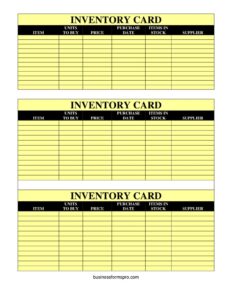
Track stock levels, suppliers, and purchase details with our free Inventory Cards template, available as a free download in PDF and DOCX.
PDF
DOCX
4 downloads
0
likes
Download Files
- DOCX
An inventory card is a simple record used to track a single stock item — its quantity on hand, price, supplier, and reorder needs — on one easy-to-scan sheet. Most people reach for inventory cards when they want a low-tech, reliable way to monitor what they have and when to buy more. This template is free to download in both PDF and DOCX formats, with no signup required.
What Is an Inventory Card?
An inventory card is a record-keeping document that captures the essential details of one stocked item in a business or storeroom. Each card typically lists the item name, how many units need to be purchased, the price, the most recent purchase date, the number of items currently in stock, and the supplier it comes from. Inventory cards are used by retailers, warehouse staff, office managers, restaurants, workshops, and anyone who needs to keep tabs on physical goods. Rather than searching through a long spreadsheet, you keep one card per product so you can see at a glance whether you are running low, what you last paid, and who to reorder from. They form the backbone of a basic manual inventory system.
When Do You Need an Inventory Card?
Inventory cards are useful any time physical items move in and out of your control and you need to track quantities and reordering. Common situations include:
- Retail stock control — keeping a separate card for each product on the shelf so you know when it dips below your reorder point.
- Warehouse and storeroom management — tracking bulk goods, raw materials, or packaging supplies received from multiple suppliers.
- Office supply tracking — monitoring consumables like paper, toner, and stationery so reorders happen before you run out.
- Restaurant or café kitchens — recording perishable and dry-goods levels along with the supplier and last purchase date.
- Small workshops and trades — keeping count of parts, fasteners, and materials used across jobs.
- Seasonal or event inventory — preparing buy lists ahead of a busy period by noting units to buy against current stock.
What an Inventory Card Should Have
A complete inventory card gives you everything you need to make a reorder decision without checking another document. At minimum, it should clearly identify the item, show the current quantity in stock, indicate how many units to buy, record the unit or order price, capture the most recent purchase date, and name the supplier. Together these fields answer the three questions every stock keeper asks: what do I have, what do I need, and where do I get it? A good card is legible, kept up to date after each count, and stored where the person responsible for purchasing can find it quickly.
How to Fill Out an Inventory Card
Use one card per item and update it whenever stock is counted, received, or used. Walk through the fields in order:
- Item — Write the full name or description of the product, including any size, model, or variant so it is not confused with similar items.
- Units To Buy — Enter how many units you need to order to bring the item back up to your target level. Calculate this from your current stock and reorder point.
- Price — Record the unit price or order price you pay. Update it whenever the supplier changes their cost so your records stay accurate.
- Purchase Date — Note the date of the most recent purchase. This helps you track how quickly stock turns over and when you last reordered.
- Items In Stock — Write the quantity currently on hand, based on your latest physical count or running tally.
- Supplier — Enter the name of the vendor or supplier you buy this item from, so reordering is fast and contact details are easy to find.
Tips for an Effective Inventory Card System
The value of inventory cards comes from keeping them current and consistent. Decide on a reorder point for each item — the stock level at which you trigger a purchase — and use the Units To Buy field to record the gap between that point and your target quantity. Store cards in alphabetical or category order so any team member can locate one fast. After every delivery, update the Items In Stock, Purchase Date, and Price fields immediately rather than relying on memory. For items with more than one supplier, you may keep a note of the alternate vendor in the supplier field so you have a backup if your main source runs out.
Inventory Cards vs. Spreadsheets and Software
Inventory cards and digital systems each have a place. Cards are quick to set up, work without electricity or training, and are ideal for small operations or as a backup to a digital system. Spreadsheets and inventory software scale better for large catalogs and can automate calculations, but they require setup and consistent data entry. Many small businesses start with printed inventory cards and graduate to software as they grow. Even then, a printed card per item can serve as a handy physical reference at the shelf or in the storeroom during a count. The DOCX version of this template lets you customize the layout, while the PDF prints cleanly for a manual binder.
Common Mistakes to Avoid
- Vague item descriptions — leaving off size, color, or model so two similar products get counted as one.
- Forgetting to update after deliveries — letting the Items In Stock figure drift away from reality.
- Outdated prices — keeping an old cost in the Price field and underestimating your reorder budget.
- No reorder point — guessing at Units To Buy instead of basing it on a target stock level.
- Missing supplier details — recording only a supplier name with no way to contact them quickly.
- Skipping the purchase date — losing track of how fast an item sells and when it was last restocked.
Frequently Asked Questions
What is an inventory card used for? An inventory card tracks the key details of a single stock item on one sheet — its name, quantity in stock, units to buy, price, last purchase date, and supplier. It helps you decide when to reorder and where to buy from without checking multiple records. Businesses use one card per product to manage stock manually.
How do I fill out an inventory card? Start by naming the item clearly, then record how many units are currently in stock and how many you need to buy. Add the price you pay, the date of your most recent purchase, and the supplier you order from. Update the card every time you count, receive, or use the item.
How is “Units To Buy” calculated? Units to buy is usually the difference between your target stock level and the quantity currently on hand. Set a reorder point for each item, and when stock falls to or below it, the units to buy field shows how many to order to return to full strength. Adjust for lead time and expected demand if needed.
Is an inventory card a legal document? An inventory card is an internal record-keeping tool, not a legal contract. It supports accurate stock management, ordering, and audits but does not create binding obligations on its own. Keep records consistent if you use them for accounting or tax reporting.
Can I use one card for several items? The card is designed for one item per sheet so each product’s stock and supplier details stay clear and easy to scan. For multiple items, print or duplicate one card per product and store them together in a binder or box. This keeps counts accurate and avoids mixing up similar goods.
Is this inventory card template really free? Yes. You can download this inventory cards template free in both PDF and DOCX formats with no signup required. Use the PDF for clean printing or the DOCX to customize the fields and layout to match your stock system.
This inventory cards template is provided as a general example for informational purposes only and does not constitute legal, financial, or accounting advice. Record-keeping and reporting requirements vary by jurisdiction and industry — consult a qualified professional to ensure your inventory practices meet your specific needs.
Related Forms
- Interruptions Log
- Quotation Record
- Interview Preparation Worksheet
- Document Tracker
- Project To Do List
- Inventory Cards Spreadsheet — Black And White
Browse more in Log and Inventory.