
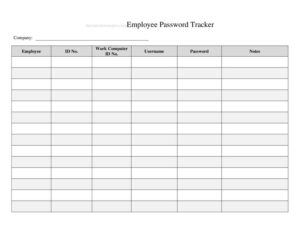
Employee Password Tracker
Download a free Employee Password Tracker template in PDF and DOCX to log accounts, credentials, and access details securely with no signup required.
PDF
DOCX
4 downloads
0
likes
Download Files
- DOCX
An Employee Password Tracker is a simple log used to record which accounts, systems, and tools an employee can access, along with credential details and the dates those credentials were created or changed. Most teams use it to keep account access organized during onboarding and to revoke access cleanly when someone leaves. It’s free to download here in both PDF and DOCX formats, with no signup required.
What Is an Employee Password Tracker?
An Employee Password Tracker is an internal document that catalogs the digital accounts assigned to a staff member and the related login information. It is typically maintained by an IT administrator, an office manager, or a small-business owner who needs a single reference point for who has access to what. The tracker documents each application or service, the username associated with it, the role or permission level, and the dates credentials were issued or rotated. Rather than scattering this information across emails and sticky notes, the form consolidates it into one organized log so access can be granted, audited, and removed in a controlled, consistent way across the whole team.
When Do You Need an Employee Password Tracker?
This log is useful any time a business manages access to multiple systems for multiple people. Common situations include:
- Onboarding a new hire who needs accounts created across email, payroll, project tools, and shared drives on day one.
- Offboarding a departing employee so every credential can be located and disabled quickly to protect company data.
- Running a security audit to confirm who holds access to sensitive systems and whether any permissions are excessive.
- Rotating passwords on a schedule and tracking which accounts have been updated and which are still pending.
- Managing shared team accounts for software subscriptions, social media, or vendor portals where several staff use the same login.
- Recovering from staff turnover in small teams where one person previously held all the credentials in their head.
What an Employee Password Tracker Should Have
A complete tracker gives you enough detail to identify, manage, and revoke each account without guesswork. The most important elements are:
- Employee identification — name, department, and role so entries are clearly attributed.
- Account or system name — the specific application, platform, or service.
- Username or login ID — the identifier tied to that account.
- Access or permission level — admin, standard user, read-only, and so on.
- Date created and date last changed — to support password rotation and audits.
- Status — active, suspended, or revoked.
- Notes — recovery email, two-factor method, or who approved the access.
How to Fill Out an Employee Password Tracker
Work through the form one row and one column at a time so nothing is missed:
- Record the employee details. Enter the full name, job title, and department at the top so every credential on the sheet is tied to a known person.
- List each account or system. In the first column of each row, write the application name — for example email, accounting software, or the customer portal.
- Add the username or login ID. Note the exact identifier used to sign in, since this is what you’ll need to locate the account later.
- Note the access level. Indicate whether the employee is an administrator, standard user, or has limited or read-only rights.
- Enter the date created. Record when the account was set up so you can track its age.
- Log the last change date. Update this each time the password is rotated to keep your rotation schedule current.
- Set the status. Mark the account active, suspended, or revoked.
- Add any notes. Capture the recovery email, whether two-factor is enabled, and who approved the access.
Storing the Tracker Securely
A password tracker is only as safe as the place you keep it. Because it concentrates sensitive access information in one document, treat it as a high-value record. Store the file in an encrypted folder or an access-controlled drive rather than an open shared directory, and limit who can view or edit it to a small number of trusted administrators. Many security-conscious organizations prefer that actual passwords live inside a dedicated password manager, using this tracker as an inventory of which accounts exist and who holds them rather than a list of plaintext secrets. If you do record passwords here, avoid printing copies, name the file discreetly, and delete outdated versions so old credentials don’t linger.
Keeping the Log Current
The value of an Employee Password Tracker comes from how reliably it reflects reality. Build a habit of updating it at predictable moments: whenever an account is created, whenever a password is changed, and immediately when an employee changes roles or leaves. A quarterly review is a sensible cadence for many teams — open the sheet, confirm each entry’s status, and flag any orphaned accounts that no longer belong to a current employee. Pairing the tracker with a simple offboarding checklist ensures that the day someone departs, every row marked to their name is reviewed and revoked rather than forgotten.
Common Mistakes to Avoid
- Storing it unprotected. Leaving the file on an open shared drive or unencrypted desktop defeats the purpose of tracking access at all.
- Letting it go stale. A tracker that isn’t updated at offboarding leaves active accounts for people who have left.
- Recording vague account names. Generic labels like “the system” make it impossible to find the right login during an audit.
- Forgetting the last-changed date. Without it you can’t tell which passwords are overdue for rotation.
- Skipping the access level. Not noting admin versus standard rights hides where your biggest security risks sit.
- Sharing the file too widely. The more people who can open it, the larger your exposure if a device is compromised.
Frequently Asked Questions
What is an Employee Password Tracker used for? It is used to keep an organized inventory of the accounts and credentials assigned to each employee. Teams rely on it during onboarding to set up access and during offboarding to make sure every login is found and disabled. It also supports password rotation and security audits.
Is it safe to keep passwords in a document like this? A document can work for small teams if it is stored securely — encrypted, access-controlled, and limited to a few administrators. For stronger protection, many organizations use this tracker to inventory which accounts exist and store the actual passwords in a dedicated password manager. The right approach depends on your security needs.
Who should maintain the tracker? Usually an IT administrator, office manager, or business owner takes ownership of it. Assigning a single responsible person keeps the log consistent and prevents conflicting versions. That person should also control who is allowed to view or edit the file.
How often should I update it? Update it in real time whenever an account is created, a password is changed, or an employee’s role changes or ends. A periodic review, such as quarterly, helps catch orphaned or outdated entries. Keeping it current is what makes the tracker genuinely useful.
Can I customize the columns for my business? Yes. The DOCX version is editable, so you can add columns for two-factor status, approval, recovery email, or expiration dates, and remove fields you don’t need. Tailor it to the systems your team actually uses.
How much does this template cost? It is completely free to download here in both PDF and DOCX formats, with no signup or account required. You can use the PDF as a printable reference or edit the DOCX to match your workflow.
This template is a general example provided for informational purposes only and does not constitute legal, financial, or security advice. Data protection and recordkeeping requirements vary by jurisdiction and industry — consult a qualified IT security or compliance professional to ensure your practices meet applicable standards.
Related Forms
- List of Non-Negotiables
- Fire Drill Log
- Monthly Project Timetable
- Beauty Salon Supplies Inventory Card
- Beneficiaries List
- Travel Abroad Packing Checklist
Browse more in Log and Inventory.