
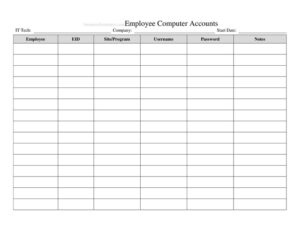
Employee Computer Accounts Tracker
Track employee logins, system access, and permissions with this free Employee Computer Accounts Tracker template — free download in PDF and DOCX.
PDF
DOCX
1 downloads
0
likes
Download Files
- DOCX
An Employee Computer Accounts Tracker is a simple log used to record every digital account, login, and system permission assigned to your staff. Most teams use it to keep a clear, up-to-date picture of who has access to what — so accounts can be granted, audited, and revoked on time. It’s free to download in PDF and DOCX, with no signup required.
What Is an Employee Computer Accounts Tracker?
An Employee Computer Accounts Tracker is a centralized record that documents the computer accounts, software logins, and access privileges issued to each employee in an organization. It is typically maintained by IT administrators, office managers, or HR, and it captures details such as usernames, the systems an employee can reach, the date access was granted, and whether the account is active or disabled. The tracker serves as both an operational reference and a security control: it shows at a glance who holds the keys to your email systems, shared drives, databases, and cloud applications. When someone joins, changes roles, or leaves, the tracker makes it straightforward to update permissions and close the loop on offboarding.
When Do You Need an Employee Computer Accounts Tracker?
This log becomes essential any time access to systems needs to be assigned, reviewed, or removed. Common situations include:
- Onboarding a new hire — to record the accounts created on their first day and the systems they were authorized to use.
- Offboarding a departing employee — to verify every account has been disabled so no access lingers after their last day.
- Role or department changes — to update permissions when someone is promoted, transferred, or takes on new responsibilities.
- Security or compliance audits — to demonstrate that access is documented, reviewed, and limited to what each person needs.
- Investigating an incident — to quickly see who had access to a particular system around the time something went wrong.
- Routine access reviews — to periodically confirm that active accounts still match current staff and current job duties.
What an Employee Computer Accounts Tracker Should Have
A useful tracker balances enough detail to be meaningful with enough simplicity to stay current. At minimum, each row should identify the employee, the account or system in question, the access level granted, and the key dates. Strong trackers also note who approved or created the account and the current status of each entry. The goal is that anyone reviewing the log — including someone unfamiliar with the day-to-day — can understand exactly who can access which systems and why. Include columns for employee name, department, username, system or application name, permission level, date granted, date revoked, status (active/inactive), and a notes field for context such as temporary access or special approvals.
How to Fill Out an Employee Computer Accounts Tracker
Work through one row per account, not one row per employee, so staff with multiple logins are fully captured. Follow these steps:
- Employee name and ID: Enter the full name and any internal employee number so the entry is unambiguous.
- Department or role: Note the team and job title, which helps justify the level of access assigned.
- System or application: Record the specific system, software, or platform the account belongs to (for example, email, accounting software, or a shared drive).
- Username or login ID: Enter the account identifier — never store passwords in the tracker.
- Access or permission level: Specify whether the account has standard, administrator, or read-only privileges.
- Date granted: Log the date the account was created or access was first enabled.
- Approved/created by: Record who authorized and set up the account.
- Status: Mark the account as active, suspended, or disabled.
- Date revoked: When access ends, enter the date the account was disabled or deleted.
- Notes: Add any context such as temporary contractor access, MFA enrollment, or pending removal.
Security Best Practices for Your Tracker
Because this document maps your organization’s access points, treat it as sensitive itself. Store the tracker in a restricted location and limit edit rights to the people responsible for account management. Never record passwords, security questions, or recovery codes in the file — the tracker should reference accounts, not provide the means to log in. Apply the principle of least privilege: grant only the access each role genuinely needs, and use the tracker to flag accounts with elevated or administrator rights for extra scrutiny. Keep a brief change history where possible so you can see when an entry was modified and by whom.
Keeping the Tracker Accurate Over Time
A tracker is only valuable if it reflects reality. Build a routine that ties updates to events: create entries during onboarding, edit them when roles change, and revoke them as part of every offboarding checklist. Schedule a recurring review — monthly or quarterly — to compare active accounts against your current employee roster and catch orphaned accounts that belong to people who have left. During these reviews, confirm that permission levels still match each person’s responsibilities and downgrade access that is no longer needed. Documenting the date of each review in the notes column gives you an audit trail and demonstrates due diligence if you are ever asked to prove your access controls.
Common Mistakes to Avoid
- Storing passwords in the tracker — this turns a helpful log into a security liability; use a dedicated password manager instead.
- Forgetting to revoke access at offboarding — dormant active accounts are a leading cause of unauthorized access.
- Listing only one account per person — most employees have several logins, and each one should be tracked separately.
- Leaving the status column blank — without a clear active/inactive marker, the log loses its audit value.
- Granting blanket administrator rights — over-provisioning increases risk; record and limit elevated access deliberately.
- Never reviewing the tracker — an outdated log gives a false sense of control and hides accounts that should be closed.
Frequently Asked Questions
What is an Employee Computer Accounts Tracker used for? It is used to document every computer account and system permission assigned to employees, so an organization can see who has access to what. It supports onboarding, offboarding, security reviews, and compliance audits by keeping access records in one place.
How do I fill out the tracker? Add one row for each account, recording the employee, the system, the username, the permission level, and the dates access was granted and revoked. Mark the current status and use the notes field for any special context, and update the entry whenever access changes.
Should I store passwords in this tracker? No. The tracker is meant to record which accounts exist and what access they carry, not to store credentials. Keep passwords in a dedicated password manager with proper encryption and access controls.
Who should maintain the tracker? Typically IT administrators, an office manager, or HR — whoever is responsible for creating and removing accounts. Edit access should be limited to those people, and the file itself should be kept in a secure, restricted location.
How often should I review it? A monthly or quarterly review works well for most organizations. During each review, compare active accounts against your current staff list, remove or disable accounts that are no longer needed, and confirm that permission levels still match each person’s role.
Is this template free to download? Yes. You can download the Employee Computer Accounts Tracker for free in both PDF and DOCX formats with no signup required, and customize the columns to fit your systems.
This template is provided as a general example for informational purposes only and does not constitute legal, security, or compliance advice. Data protection and access-management requirements vary by jurisdiction and industry — consult a qualified IT security or compliance professional to ensure your practices meet applicable standards.
Related Forms
- Weekly Bathroom Cleaning Checklist
- Interruptions Log
- Baby Care Daily Log
- Pool Maintenance Log
- Weekly Cleaning Log
- Emergency Supplies List
Browse more in Log and Inventory.