
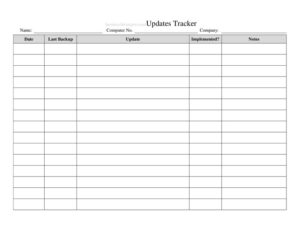
Computer Update Tracker
Track software patches, OS upgrades, and security updates across your machines with this free Computer Update Tracker template — free download in PDF and DOCX.
PDF
DOCX
2 downloads
0
likes
Download Files
- DOCX
A Computer Update Tracker is a simple log used to record when software patches, operating system upgrades, antivirus definitions, and firmware revisions are applied to each computer in your care. The single most common reason people use one is to prove every machine is patched and current — closing the gaps that hackers and auditors love to find. You can download it free in PDF and DOCX, with no signup required.
What Is a Computer Update Tracker?
A Computer Update Tracker is a structured record that documents the update history of one or more computers over time. It is typically maintained by IT staff, a managed service provider, an office manager, or a sole proprietor who simply wants to keep their own machines secure. Each row captures what was updated, when, who performed the work, and whether the update succeeded. Rather than relying on memory or scattered notes, the tracker gives you a single, dated source of truth showing that patches, security definitions, and version upgrades have actually been installed. It is equally useful for a one-person workshop with three laptops or an office managing dozens of workstations and servers.
When Do You Need a Computer Update Tracker?
This log earns its keep in any environment where keeping software current matters — which, today, is almost everywhere. Common situations include:
- Routine patch management — recording monthly operating system and application updates so nothing slips through the cracks.
- Security and compliance audits — demonstrating to auditors, insurers, or clients that machines are patched against known vulnerabilities.
- Managed IT services — an MSP proving the maintenance work performed for each client during a billing period.
- Troubleshooting after a problem — checking whether a recent update coincided with a crash, performance drop, or compatibility issue.
- Onboarding new hardware — logging the baseline updates installed when a new computer is set up before deployment.
- End-of-life planning — spotting machines stuck on outdated versions that can no longer receive security fixes.
Types of Updates Worth Logging
Not every update is the same, and a good tracker captures the variety. Operating system updates and cumulative patches are the headline items, but you should also log application updates (browsers, office suites, line-of-business software), security and antivirus definition refreshes, driver and firmware revisions, and BIOS or UEFI changes. Noting the category alongside each entry makes it easy to filter and report later — for example, pulling every security-related update applied in a given quarter.
What a Computer Update Tracker Should Have
A complete tracker balances detail with practicality. At minimum, each entry should identify the machine, the update, the date, and the outcome. Useful columns include the computer name or asset tag, the user or department it belongs to, the type of update, the version or KB number, the date applied, the technician responsible, the status (success, failed, pending, or rolled back), whether a restart was required, and a notes field for anything unusual. A header area for the organization name, the period covered, and the person maintaining the log keeps multiple sheets organized. The goal is a record detailed enough to answer “was this machine patched, when, and by whom?” at a glance.
How to Fill Out a Computer Update Tracker
Because this is a flexible template, fill it in consistently using these steps:
- Complete the header. Enter your organization or team name, the tracking period (such as the month or quarter), and the name of the person maintaining the log.
- Identify the computer. In the first column, record the machine’s name, hostname, or asset tag, plus the assigned user or department so each row is traceable.
- Describe the update. Note the update type (OS, application, security, driver, firmware) and the specific name, version number, or KB/patch identifier.
- Enter the date applied. Use a consistent format such as YYYY-MM-DD so entries sort chronologically.
- Record who performed it. Add the technician’s name or initials, or note “automatic” if the update installed itself.
- Log the status. Mark the result — success, failed, pending, or rolled back — and indicate whether a reboot was needed.
- Add notes. Capture errors, reboot times, downtime, or follow-up actions in the notes column.
- Save and date the sheet. Store it where the whole IT team can reach it and review it on a regular schedule.
Tips for Keeping the Log Accurate
A tracker is only valuable if it stays current, so update it at the time work is done rather than reconstructing it later. Standardize naming so the same machine always appears identically — “FRONT-DESK-01” rather than alternating between several nicknames. Use a shared, backed-up file or cloud document so several technicians can contribute without overwriting one another. Where you run automated patch tools, periodically reconcile their reports against this manual log so nothing is missed. Finally, review the tracker monthly to flag machines that show no recent entries; a blank row over several cycles is often a warning sign that a device is being overlooked.
How It Differs From an Asset Inventory
People sometimes confuse an update tracker with a hardware asset inventory, but they answer different questions. An asset inventory lists what equipment you own — make, model, serial number, purchase date, and location. An update tracker focuses on maintenance over time, capturing the ongoing stream of patches and version changes applied to those assets. The two work best together: the inventory tells you which machines exist, and the tracker proves each of them is being kept secure and current.
Common Mistakes to Avoid
- Logging updates inconsistently — recording some machines diligently while ignoring others creates dangerous blind spots.
- Vague machine names that make it impossible to tell which computer a row refers to.
- Omitting failed updates — a failed or rolled-back patch is exactly what you most need to track.
- Skipping the date or version, which renders the entry useless for audits or troubleshooting.
- Never reviewing the log, so overdue machines go unnoticed for months.
- Keeping only one local copy with no backup, risking loss of the entire maintenance history.
Frequently Asked Questions
What is a Computer Update Tracker used for? It is used to log every software patch, operating system upgrade, security definition, and firmware change applied to your computers. This creates a dated history you can use for audits, troubleshooting, and routine patch management. It ensures no machine quietly falls behind on critical updates.
How do I fill out the tracker for each computer? Add one row per update, recording the machine name, the type and version of the update, the date applied, who performed it, and the outcome. Use consistent naming and date formats so entries sort and filter cleanly. Add notes for any errors or required reboots.
Is this Computer Update Tracker free to download? Yes. You can download it free in both PDF and DOCX formats with no signup required. The DOCX version is fully editable, so you can add or remove columns to match the way your team works.
How often should I update the log? Update it at the moment work is performed, then review the whole sheet on a regular cadence — monthly is common. Frequent updates keep the record accurate, and scheduled reviews help you spot machines that have no recent entries and may be overdue.
Can I use it for both Windows and other systems? Yes. The template is system-agnostic, so it works equally well for Windows, macOS, Linux machines, and servers. Simply use the update-type and version columns to note which platform and patch each entry refers to.
Does a Computer Update Tracker satisfy compliance requirements? A well-maintained tracker is strong supporting evidence that patches are being applied, which many frameworks expect to see. However, specific compliance standards vary, so confirm the exact records your auditors or regulations require. Keep the log complete, dated, and backed up to maximize its value.
This template is provided as a general example for informational purposes only and does not constitute legal, security, or compliance advice. Patch-management obligations and recordkeeping requirements vary by industry and jurisdiction — consult a qualified IT or compliance professional to ensure your practices meet applicable standards.
Related Forms
- Pest Sighting
- Purse Inventory
- Inventory Control
- Retirement Income Sources
- Inventory Cards Spreadsheet — Black And White
- Ongoing Contracts List
Browse more in Log and Inventory.