
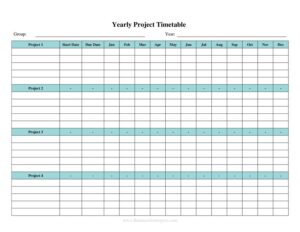
Yearly Multiple Project Timetable
Download a free Yearly Multiple Project Timetable template in PDF and DOCX to plan, track, and coordinate several projects across a 12-month calendar.
PDF
DOCX
0
likes
Download Files
- DOCX
A Yearly Multiple Project Timetable is a planning document that lets you map several projects side by side across a 12-month calendar so you can see milestones, deadlines, and resource overlaps at a glance. People most often use it to coordinate competing initiatives and avoid scheduling conflicts within a single team or organization. You can download it free here in PDF and DOCX, with no signup required.
What Is a Yearly Multiple Project Timetable?
A Yearly Multiple Project Timetable is a year-long scheduling grid that displays multiple projects on one page, typically with project names listed down the side and months running across the top. It is used by project managers, team leads, business owners, and operations staff to visualize when each project starts, peaks, and ends over a calendar or fiscal year. Rather than tracking individual tasks in fine detail, it captures the high-level rhythm of your portfolio so you can plan staffing, budgets, and dependencies. Because it lives in a single view, it functions as both a planning log and a quick-reference inventory of everything your team has committed to delivering across the year.
When Do You Need a Yearly Multiple Project Timetable?
- You are managing three or more concurrent projects and need to spot where their busy periods collide.
- You are preparing an annual plan and want a one-page overview to share with leadership or clients.
- You need to balance limited resources—people, equipment, or budget—across competing initiatives.
- You are coordinating a department where several teams run parallel workstreams throughout the year.
- You want to track progress against planned timelines and flag projects that are slipping.
- You are kicking off a new fiscal year and need a baseline schedule to update each quarter.
Types of Project Timetables It Replaces
This single document can stand in for several scattered tools. Instead of maintaining separate calendars, a wall of sticky notes, or a tangle of spreadsheet tabs, you consolidate everything into one annual grid. It works as a lightweight alternative to complex Gantt software for small teams, a portfolio summary for stakeholders who only need the big picture, and a planning log that you revisit during monthly or quarterly reviews.
What a Yearly Multiple Project Timetable Should Have
A complete timetable makes it instantly clear who is doing what and when. The essentials include a clearly labeled year and a row of all twelve months. Each project should have its own row with a descriptive name, an owner or responsible party, and a visible span showing its active months. Strong timetables also note start and end dates, key milestones or deadlines, current status, and priority level. Leaving room for notes—such as dependencies, budget caps, or risk flags—turns a static calendar into a working management tool you can act on.
How to Fill Out a Yearly Multiple Project Timetable
- Enter the year at the top so the timetable is clearly anchored to a calendar or fiscal period.
- Confirm the month columns run January through December (or adjust them to match your fiscal year).
- List each project name in its own row down the left side, ordered by start date or priority.
- Assign a project owner or responsible team to each row so accountability is obvious.
- Mark the start month and end month for every project, then shade or fill the cells between them to show the active span.
- Add milestone markers in the relevant months for key deliverables, launches, or review gates.
- Record a status (planned, in progress, on hold, complete) and a priority level for each project.
- Use the notes area to capture dependencies, budget limits, or risks worth flagging.
- Save a baseline copy, then update the grid at each review so the document reflects reality.
Tips for Keeping the Timetable Useful
A timetable only helps if it stays current. Set a recurring date—monthly or at the end of each quarter—to review and revise it. Use a consistent color or symbol system so anyone glancing at the grid can decode it without explanation: one fill for active months, a distinct mark for milestones, and a flag for at-risk projects. Keep the project list manageable; if you have dozens of initiatives, group related ones into programs so the page stays readable. When sharing with stakeholders, the PDF version preserves your formatting, while the DOCX version lets you keep editing as plans shift.
How It Differs From a Detailed Project Plan
It helps to understand what this timetable is not. A detailed project plan or task list breaks work into individual activities, assignees, and day-by-day dependencies. The Yearly Multiple Project Timetable sits one level above that: it is the portfolio view that shows how all your projects relate to one another across the year. Use it to make high-level decisions—when to start a project, where resources are stretched, which deadlines cluster—and let your task-level tools handle the granular execution. The two complement each other; the timetable points to where the pressure is, and the detailed plan tells you exactly how to manage it.
Common Mistakes to Avoid
- Cramming too many projects into one grid until the page becomes unreadable.
- Filling in start and end months but never updating them as timelines change.
- Leaving owners blank, so no one knows who is accountable for each row.
- Skipping a legend, so colors and symbols mean different things to different readers.
- Ignoring overlaps—failing to notice when two high-priority projects peak in the same month.
- Treating the timetable as a one-time document instead of a living plan you revisit regularly.
Frequently Asked Questions
What is a Yearly Multiple Project Timetable used for? It is used to plan and track several projects across a single 12-month calendar so you can see milestones, deadlines, and resource overlaps in one view. It helps teams coordinate competing initiatives and avoid scheduling conflicts. It works equally well for a calendar year or a custom fiscal year.
How do I fill out the timetable? Start by entering the year, then list each project in its own row and mark the months it runs by filling the cells between its start and end dates. Add an owner, status, priority, and any milestones, and use the notes section for dependencies or risks. Update the grid at each review so it stays accurate.
Can I use it for a fiscal year instead of a calendar year? Yes. The month columns can be relabeled to start at any month, so you can align the timetable to your organization’s fiscal year. The DOCX version makes this adjustment quick and easy.
How is this different from project management software? This timetable gives you a fast, shareable, one-page overview without the cost or learning curve of dedicated software. It is ideal for small teams or for presenting a portfolio summary to stakeholders, though large or highly detailed projects may eventually benefit from a more granular tool.
How often should I update it? Review and revise the timetable on a regular cadence—monthly or quarterly works well for most teams. Keeping a baseline copy and comparing it to the current version helps you spot which projects are slipping against their planned schedule.
Is this template really free to download? Yes. The Yearly Multiple Project Timetable is completely free to download in both PDF and DOCX formats, with no signup or account required. You can use and customize it for as many projects and years as you need.
This template is a general example provided for informational purposes only and does not constitute legal, financial, or professional project-management advice. Planning needs and best practices vary by organization and industry—consult a qualified professional to ensure your approach fits your specific circumstances.
Related Forms
- Incoming Mail Log
- IT Inventory
- Birthday Calendar One Page
- Home Repair Bid Comparison
- Coffee Shop Items Inventory Card
- College Packing Checklist
Browse more in Log and Inventory.