
Weekly Status Report
Track completed work, open tasks, and upcoming projects with our free Weekly Status Report template, available as a free download in PDF and DOCX.
PDF
DOCX
3 downloads
0
likes
Download Files
- DOCX
A Weekly Status Report is a simple document that summarizes what an employee accomplished during the week, what remains in progress, and what is planned for the days ahead. People most often use it to keep managers informed without long meetings, and it doubles as a running log of project activity. You can download this Weekly Status Report free in both PDF and DOCX formats, with no signup required.
What Is a Weekly Status Report?
A Weekly Status Report is a structured update prepared by an individual contributor or team member and reviewed by a manager, lead, or assessor. It documents the projects and tasks worked on during a defined reporting period, separating completed work from items still in progress and from work scheduled for the following week. Because it captures dates, project names, and short descriptions in one place, it serves as both a communication tool and a lightweight record. Over time, a series of these reports forms a clear log of productivity, helping teams measure throughput, spot bottlenecks early, and keep a documented history of who did what and when.
When Do You Need a Weekly Status Report?
This report fits almost any role where work is project- or task-driven and progress needs to be visible. Common situations include:
- Routine team check-ins — submitting a consistent weekly update so a manager can see progress without scheduling extra meetings.
- Project tracking — keeping a running record of which deliverables were completed and which slipped to the next week.
- Remote and hybrid work — giving distributed teams a shared, written snapshot of activity across the week.
- Performance reviews — building a documented history of accomplishments that an assessor can reference at review time.
- Client or stakeholder reporting — turning internal progress into a clean summary that can be shared externally.
- Onboarding new hires — helping new employees structure their week and demonstrate early contributions.
What a Weekly Status Report Should Have
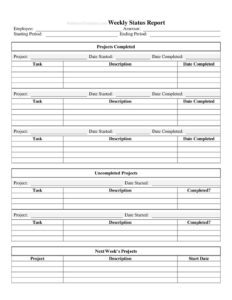
A complete report makes it easy to read at a glance and trustworthy as a record. The essentials include the employee who completed the work and the assessor who reviews it, a clearly defined starting period and ending period, and three distinct sections: projects completed, uncompleted projects still in progress, and next week’s planned projects. Each entry should name the project, the associated task, a short description, and the relevant dates so anyone reading it understands the timeline. The uncompleted section should also indicate whether each item is finished, while the forward-looking section should list a planned start date for upcoming work.
How to Fill Out a Weekly Status Report
- Employee and Assessor: Enter your name in the Employee field and the name of your manager or reviewer in the Assessor field.
- Reporting period: Fill in the Starting Period and Ending Period dates that this report covers, typically a Monday-through-Friday range.
- Projects Completed: For each finished item, write the Project name, the Date Started, the Date Completed, the specific Task, a brief Description of what was done, and confirm the completion date.
- Add additional completed entries: Repeat the Project, Date Started, Date Completed, Task, and Description fields for every deliverable you closed out this week.
- Uncompleted Projects: List each in-progress item with its Project name, Date Started, Task, and Description, then mark the Completed? field as no or in progress.
- Next Week’s Projects: Record the Project, a short Description, and the planned Start Date for work you intend to begin or continue.
- Review and submit: Reread for accuracy, confirm dates align, and send it to your assessor.
Completed vs. Uncompleted vs. Upcoming
The strength of this report is the way it separates work into three clear buckets. The Projects Completed section celebrates finished deliverables and shows measurable output, with both start and completion dates so reviewers can see how long things took. The Uncompleted Projects section is just as important: it keeps in-progress work visible, flags anything stalled, and uses the Completed? field to make status unambiguous. The Next Week’s Projects section turns the report into a planning tool, signaling priorities and start dates before the new week begins. Read together, these three sections tell a complete story — what got done, what is still moving, and what comes next.
Tips for a Useful Weekly Status Report
Keep descriptions short but specific: “Drafted Q3 budget summary” is more useful than “worked on budget.” Use consistent project names from week to week so the report can be tracked over time. Be honest about uncompleted items rather than hiding slipped work — a clear status helps managers reallocate resources. Submit on the same day each week so the cadence becomes reliable, and save each report so you build a searchable history you can reference during reviews or audits.
Common Mistakes to Avoid
- Vague descriptions — entries like “misc tasks” make the report useless as a record or planning tool.
- Missing dates — leaving the Date Started or Date Completed blank breaks the timeline and the log’s value.
- Mixing completed and in-progress work — putting unfinished items in the Projects Completed section misleads your assessor.
- Inconsistent project names — renaming the same project each week makes it hard to track across reports.
- Skipping next week’s plan — omitting upcoming projects removes the forward-looking value of the report.
- Submitting late or irregularly — an inconsistent cadence undermines the report’s usefulness for everyone.
Frequently Asked Questions
What is a Weekly Status Report used for? It is used to summarize an employee’s work over a one-week period for a manager or assessor. The report captures completed projects, items still in progress, and work planned for the following week. Together these give leaders a quick, written snapshot of progress without needing a meeting.
How do I fill out a Weekly Status Report? Start by entering the employee and assessor names and the starting and ending dates of the period. Then list completed projects with their tasks, descriptions, and dates, note any uncompleted items with their status, and finally add the projects and start dates planned for next week. Review for accuracy before submitting.
Is this template free to download? Yes. The Weekly Status Report template is completely free to download in both PDF and DOCX formats, and no signup or account is required. You can edit the DOCX version to match your team’s exact projects and workflow.
How often should a status report be submitted? As the name suggests, it is typically submitted once per week, often at the end of the workweek or first thing the following Monday. The key is consistency — submitting on the same day each week makes the reports easy to compare and track.
What’s the difference between completed and uncompleted projects on the form? Completed projects are deliverables that were finished during the reporting period and include a completion date. Uncompleted projects are still in progress; the Completed? field lets you mark them as not yet done so they stay visible until they are closed out.
Can I customize this report for my team? Absolutely. Because the template is provided in editable DOCX, you can rename sections, add columns for hours or priority, or remove fields you don’t use. Many teams adapt it to fit their specific projects, departments, or reporting standards.
This Weekly Status Report template is a general example provided for informational purposes only and is not legal, financial, or professional advice. Reporting requirements and workplace policies vary by organization and jurisdiction — consult your manager, HR department, or a qualified professional to ensure it meets your specific needs.
Related Forms
- Bird Strike Form
- Vehicle Maintenance Log
- Petsitter Daily Log
- Computer Time Tracker
- Elapsed Time Log
- Vendor Price Analysis
Browse more in Log and Inventory.